 Taggle for ChromeBeta
Save references without leaving the page.
The Taggle extension brings the upload form to any page in Chrome. Pause on the shot, grab the frame, add your tags, and it's in your library before the clip ends.
Free with your Taggle account · Chrome on Windows and macOS · How to install
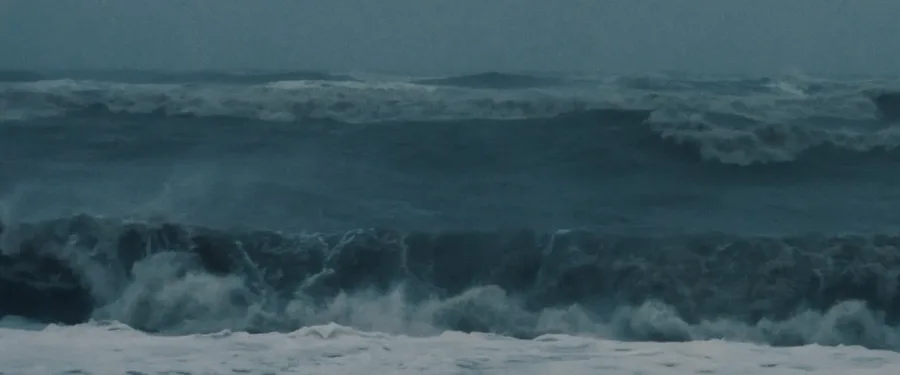
1. Pause. A video you like is playing.
Works where your references are
YouTube & Vimeo
The link, the title and their own thumbnail, filled in as soon as you open it.
Posts and reels. The cover is saved on Taggle, so it doesn't expire like Instagram's links do.
Any other page
Its preview image if it has one, or a screenshot of what you're looking at.
The upload page, in a click
Same form, same tags, same library as uploading on Taggle, with a few things only an extension can do.
Frame, not a screenshot
Pause the video and press Frame. The picture comes straight from the player, at the video's own resolution and without the control bar.
Select area
Drag a box over any part of the page, then move it or resize it from the handles. Or take the whole page.
Paste a screenshot
Screenshot anything with WinShiftS, open Taggle and press CtrlV. It becomes the thumbnail.
Your own categories
As you type, suggestions come from your own category tree. Prefer to browse? Open the whole tree next to the field.
Already on Taggle?
If that link is already on Taggle, you'll see it before you upload. Adopt it with your own tags, or upload your version anyway.
More than one picture
Add more frames to the same reference as assets, and make any of them the cover.
Stays open while you work
Taggle opens in Chrome's side panel, next to the page. Scroll, pause, rewind: it stays there until you close it with the X or click the icon again.
Public or private
Choose who sees each reference. Private ones stay in your library, for your eyes only.
How to install
For Google Chrome 116 or newer, on Windows and macOS. You'll need a Taggle account.
- 1Download the extension. You need to be logged in to Taggle.Download for Chrome
- 2Unzip it into a folder you'll keep, for example Documents › Taggle. Chrome runs the extension from that folder, so don't delete or move it.
- 3Type
chrome://extensionsin the address bar and turn on Developer mode, top right. - 4Click Load unpacked and choose the folder: the one with
manifest.jsonright inside it. - 5Pin it from the puzzle piece, and log in on taggle.pro in the same Chrome. Then open any page and click the Taggle icon.
This version doesn't update by itself. When there's a new one, download it again, replace the files in the same folder, then press ↻ on the Taggle card in chrome://extensions.
Shortcuts
Want a key that opens Taggle? Set one at chrome://extensions/shortcuts.
What the extension can see
Nothing, until you click it.
It only gets access to the tab you click it on. While its panel is open it follows that tab, so it can move to a new page there. It doesn't read your other tabs or your browsing history.
The page you're saving.
Its address, title and preview image, to fill in the form. The address goes to Taggle to load your categories and check if it's already there.
Pictures, when you need one.
It reads a video frame or takes a screenshot when you press Frame or Select area, or by itself when the page has no picture of its own.
Only Taggle gets anything.
Pictures are uploaded when you press Add to your library, to your Taggle account and nowhere else.
More in our privacy policy.
Questions
Do I need a Taggle account?
Yes. The extension uses the account you're logged into on taggle.pro, in the same Chrome. If you're not logged in, it shows a Log in button instead of the form.
Does it cost anything?
No. What you save counts toward the same monthly limits as uploading on the site: 5 uploads a month on Free and 100 on Pro. See Pricing.
Which sites does it work on?
Any page you can open in Chrome. On YouTube, Vimeo and Instagram the form fills itself in; everywhere else it takes the page's preview image, or a screenshot when there isn't one.
Frame doesn't show up, or the frame comes out black.
Frame appears only when the page has a video playing in it. Some streaming services protect their video, and the frame comes out black; use Select area there instead.
Why can't I pick an image from my computer?
The extension takes its pictures from the page you're on. For an image on your computer, copy it and paste it into Taggle, or use the Upload page.
Does it work in other browsers?
It's made for Google Chrome 116 or newer, on Windows and on macOS.
Is the download safe?
It comes straight from taggle.pro, over a secure connection, and only for logged-in Taggle accounts. It's the same extension that's going to the Chrome Web Store, and it can only talk to taggle.pro — see what it can see above.
Why does Chrome ask for Developer mode?
Chrome only installs extensions from outside the Chrome Web Store that way. Once Taggle is in the store, you'll install it with one click and it will update itself.
Tag it the moment you see it.
Free with your Taggle account. The Chrome Web Store version, which updates by itself, is coming soon.